Change Your Password
Change your password regularly or whenever you think someone else may know it. You can do this from Settings while logged in.
Before you begin
You need:
- Your current BrightLearn password
- A new password you will remember (at least 6 characters)
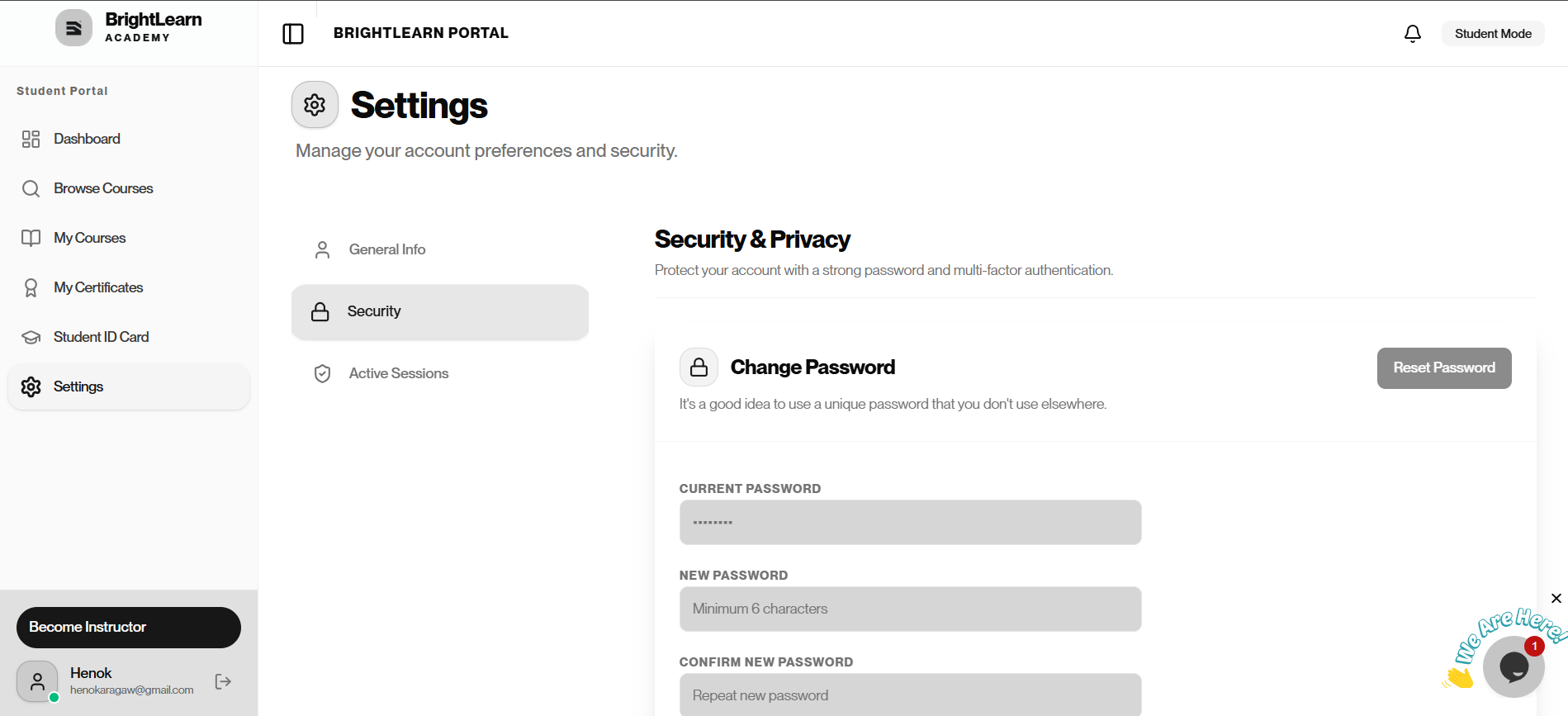
Step 1 — Open Settings
- Log in to BrightLearn.
- Click Settings in the left sidebar.
Step 2 — Open Security
- In the Settings menu, click Security.
- The Security & Privacy page opens.
- Find the Change Password section.
Step 3 — Enter your current password
- Click inside the Current password field.
- Type the password you use to log in now.
Step 4 — Enter your new password
- Click inside the New password field.
- Type your new password.
- Click inside the Confirm new password field.
- Type the same new password again.
Use a mix of letters and numbers. Avoid using the same password as your email account.
Step 5 — Save the new password
- Click Save or Update Password.
- Wait for the success message.
Step 6 — Log in again (if asked)
Some accounts log you out after a password change:
- Go to the login page.
- Enter your email and new password.
- Click Login.
Troubleshooting
I forgot my current password.
Use Forgot Password instead. You do not need to be logged in.
Passwords do not match.
Make sure New password and Confirm new password are exactly the same.
Frequently Asked Questions
How often should I change my password?
Change it if you think it was shared or compromised. Otherwise, every few months is a good habit.
Next: Log out
Last updated on