View Your Certificate
When you complete a course, pass every module quiz, and pass the final exam, BrightLearn may issue a certificate. You can view it online from your account.
Before you begin
- Log in to BrightLearn.
- Finish the course — see Complete a course.
- Pass every module quiz and the final exam — see Quizzes.
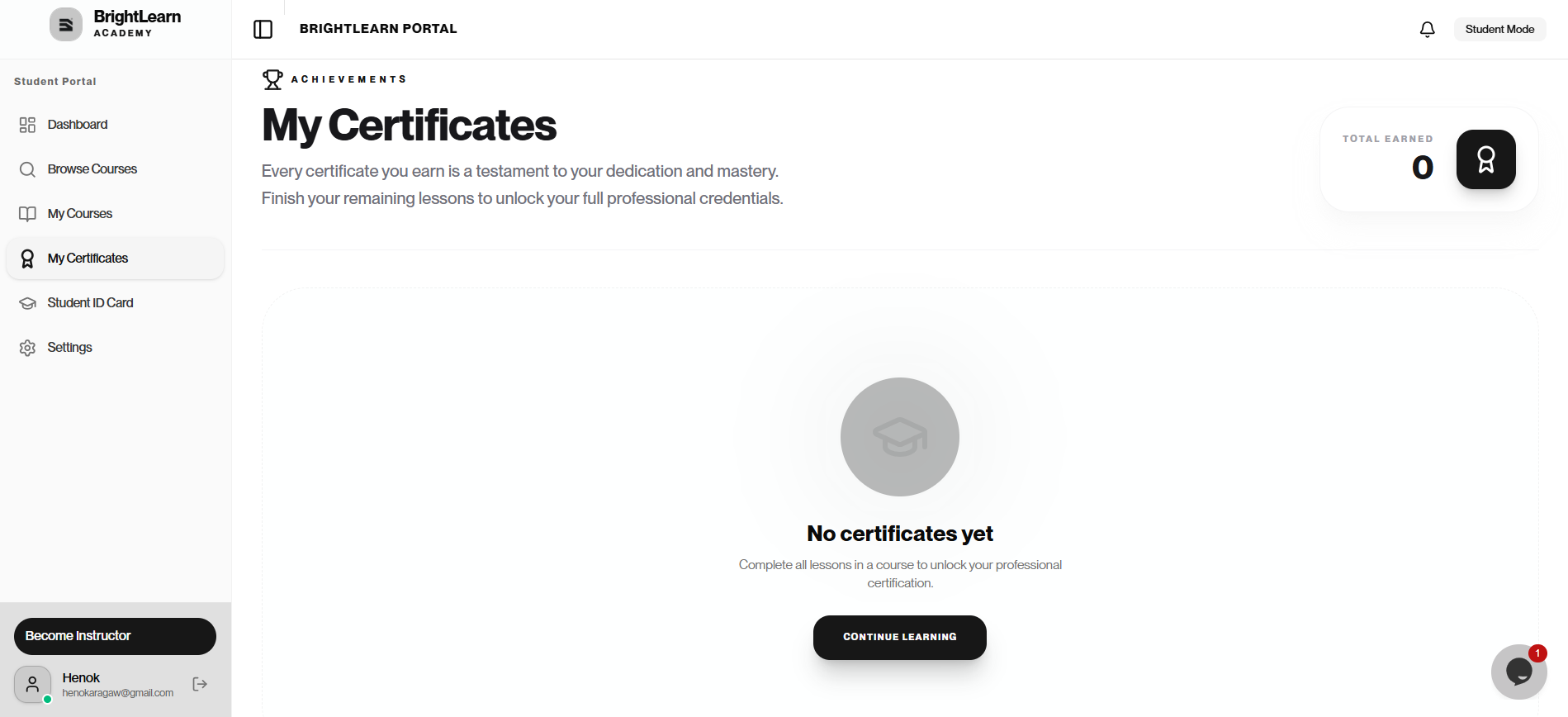
Step 1 — Open the completed course
- Click My Courses.
- Open the course marked Completed or at 100% progress.
Step 2 — Find the certificate link
- Look for View certificate, Certificate, or a trophy icon.
- Click the link or button.
The certificate opens on screen.
Step 3 — Review certificate details
Your certificate typically shows:
- Your name (from your profile)
- Course title
- Completion date
- School or platform name
If your name is wrong, contact your administrator before downloading a new copy if your school allows reissue.
Step 4 — Download or share
- To save a copy, see Download certificate.
- To share online, see Share certificate.
Troubleshooting
Certificate link is missing.
- Confirm all lessons in every module are complete.
- Confirm you passed every module quiz.
- Confirm you passed the final exam.
- Wait a few minutes and refresh.
- Contact your teacher if the course should include a certificate.
Frequently Asked Questions
Is the certificate official?
It confirms you completed the course on BrightLearn. Your school may have additional requirements for official credit.
Next: Download certificate
Last updated on