Login to BrightLearn
Use this guide to sign in to your BrightLearn account and open your dashboard.
Before you begin
You need:
- Your email address
- Your phone number
- Your username
- Your password
If you do not have an account yet, see Create an account first.
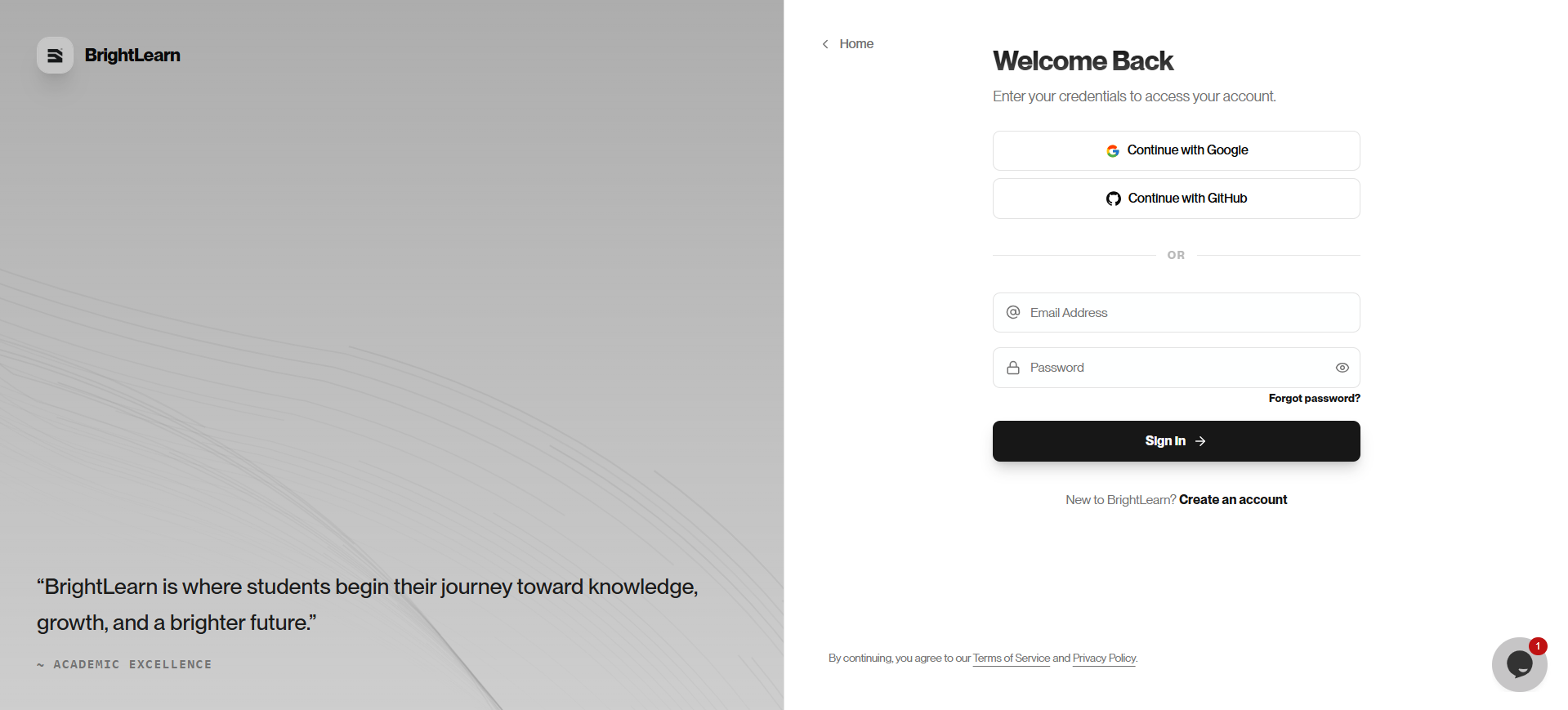
Step 1 — Open the login page
- Open BrightLearn in your browser.
- Click Login in the top-right corner of the page.
The login page appears.
Step 2 — Enter your email
- Click inside the Email field.
- Type your email address, phone number, and username.
- Click Continue or press Enter.
Step 3 — Enter your password
- Click inside the Password field.
- Type your password.
- Click Login or Sign In.
Alternative — Login with GitHub or Google
If you created your account using a social provider or linked one later, you can log in with a single click.
- On the login page, click Continue with Google or Continue with GitHub.
- A secure popup will open, asking you to sign in to that service (if you are not already).
- You will be logged into your BrightLearn Dashboard automatically.
Step 4 — Open your dashboard
After a successful login, BrightLearn opens your Dashboard.
From here you can:
- Click My Courses to see enrolled courses
- Click Browse Courses to find new courses
- Click your profile picture or name to open account settings
If “Remember me” is available, you can check it to stay signed in on your personal device. Do not use this on shared computers.
Troubleshooting
I forgot my password.
Follow Forgot Password to reset it.
I see “Invalid email or password.”
Check that your email is spelled correctly and that Caps Lock is off. Try again, or reset your password.
The page keeps loading.
Refresh the page once. If it still fails, see Cannot log in.
Frequently Asked Questions
Can I stay logged in on my phone?
Yes. Use “Remember me” on your personal phone only.
How do I log out?
See Log out for step-by-step instructions.