Browse Courses
BrightLearn offers many courses across different subjects. Use this guide to browse the catalog and find courses that interest you.
Before you begin
- Log in to BrightLearn (browsing may also work without login on some sites).
- Have an idea of what subject or topic you want to learn.
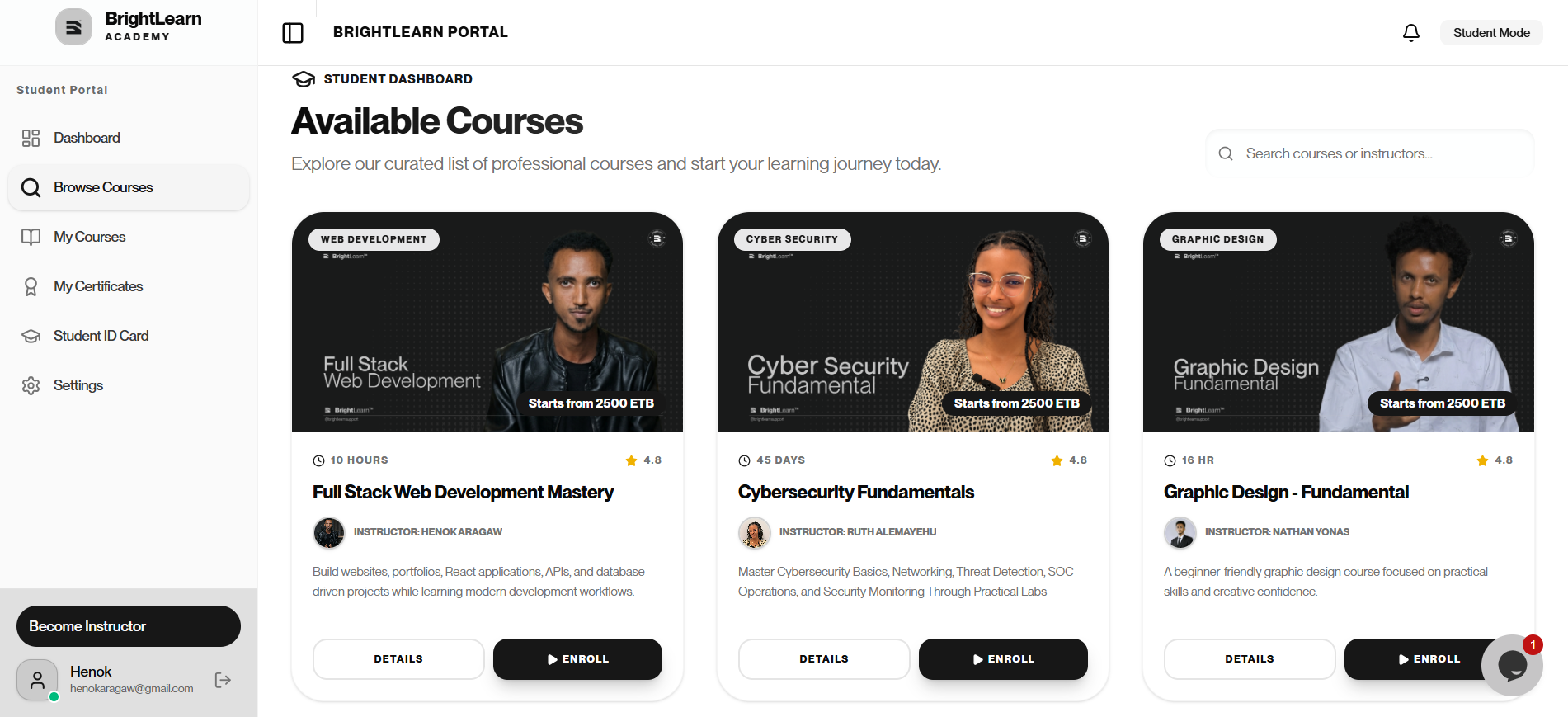
Step 1 — Open the courses page
- After logging in, look at the left navigation or top menu.
- Click Courses or Browse Courses.
The course catalog opens with a list of available courses.
Step 2 — Scroll through courses
- Scroll down to see more courses.
- Each course card usually shows:
- Course title
- Short description
- Price (or “Free”)
- Teacher name
Step 3 — Open a course you like
- Click the course title or View Details on a course card.
- The course details page opens with full information.
Add courses to your favorites or wishlist if that option is available, so you can find them later.
Step 4 — Enroll or keep browsing
- If you want the course, click Enroll and follow Enroll in a course.
- If not, click Back or Courses to continue browsing.
Troubleshooting
The courses page is empty.
There may be no published courses yet, or your account may need access. Contact your teacher or administrator.
I cannot open a course.
Make sure you are logged in and your internet connection is working.
Frequently Asked Questions
Can I preview a course before enrolling?
The course details page shows the syllabus, lesson list, and description. Some courses offer a free preview lesson.
Next: Search for courses
Last updated on