Track Your Progress
BrightLearn tracks which lessons you finish so you always know how far you have come in a course.
Before you begin
- Log in to BrightLearn.
- Be enrolled in an Active course.
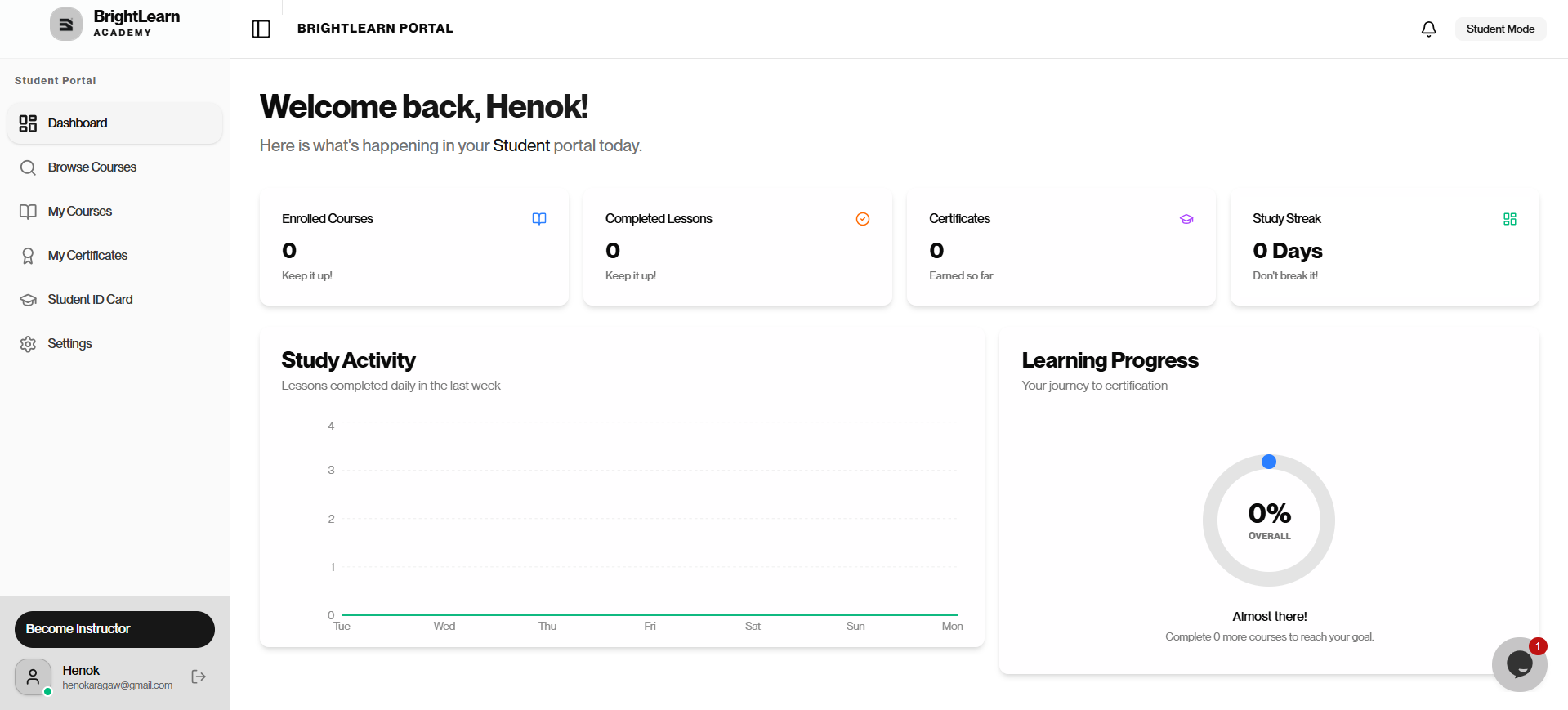
Step 1 — Open your Dashboard
- After logging in, click Dashboard in the left sidebar.
- Your student dashboard opens with your enrolled courses and activity.
Step 2 — View progress on My Courses
- Click My Courses in the left sidebar.
- Each course card may show a progress bar or percentage complete.
Step 3 — View progress inside a course
- Open a course from My Courses.
- Look at the top of the page for overall progress.
- In the lesson list, completed lessons often show a checkmark or green icon.
Step 4 — See what is left
- Scroll through the lesson list.
- Lessons without checkmarks are not finished yet.
- Look for locked modules — these unlock after you pass the current module quiz.
- Check whether the final exam at the end of the course is still incomplete.
- Click the next incomplete lesson to continue.
Step 5 — Update progress
Progress updates when you:
- Finish watching a video to the end
- Click Mark complete if that button appears
- Pass a module quiz (unlocks the next module)
- Pass the final exam (required for your certificate)
If progress looks wrong, open the lesson again and finish any required step.
Troubleshooting
Progress stuck at zero.
Make sure you watch videos to the end, pass each module quiz, and complete the final exam if required.
A module is locked.
Pass the quiz for the previous module. Watch all lessons in your current module first.
Lesson shows complete but progress did not change.
Refresh the page or log out and back in.
Frequently Asked Questions
Does progress sync across devices?
Yes. Log in with the same account on any device to see the same progress.
Next: Complete a course
Last updated on