Edit Your Profile
Keep your BrightLearn profile up to date so teachers can reach you and your certificate shows the correct name.
Before you begin
- Log in to BrightLearn.
- Know what you want to change (display name or email).
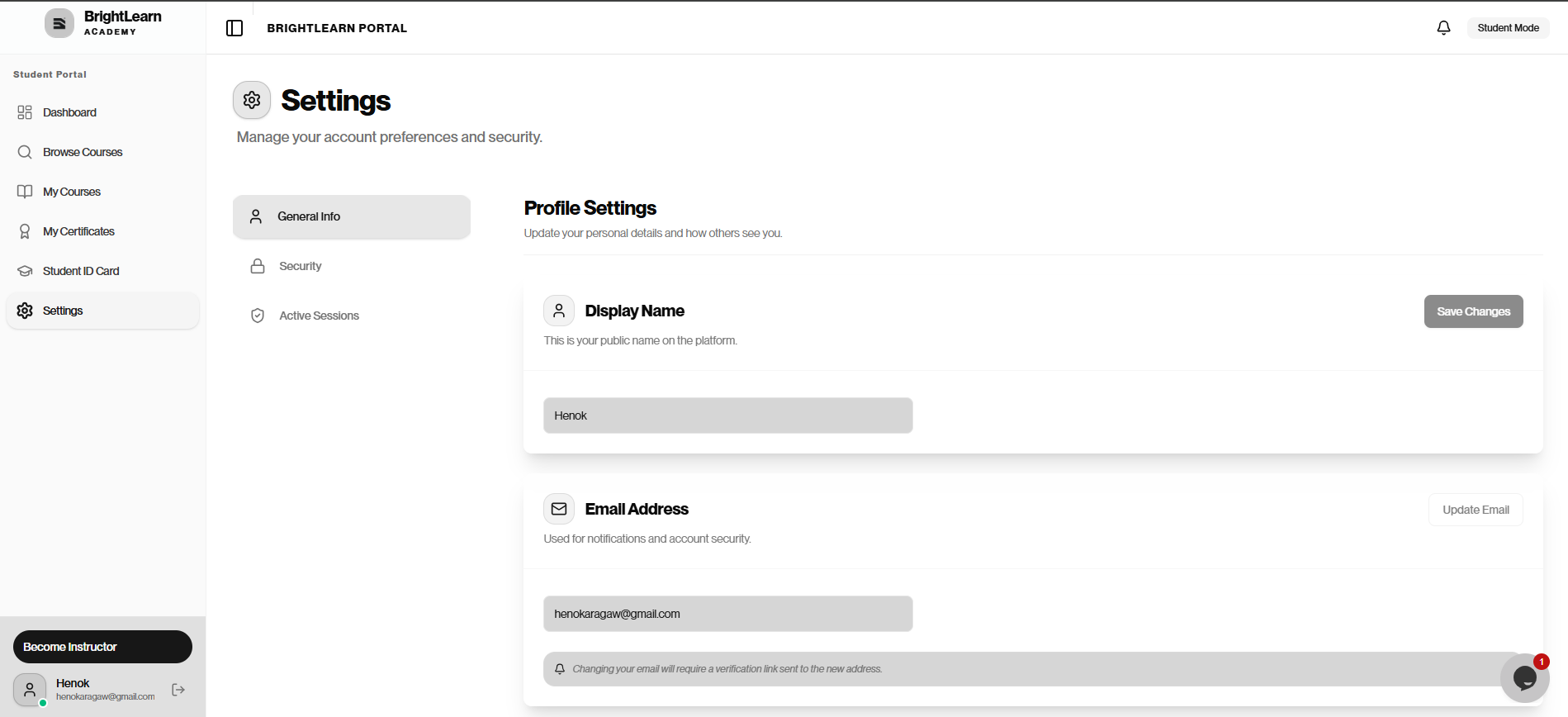
Step 1 — Open Settings
- After logging in, look at the left sidebar.
- Click Settings near the bottom of the menu.
- The Settings page opens.
Step 2 — Open General Info
- On the Settings page, find the tabs on the left.
- Click General Info if it is not already selected.
- The Profile Settings section appears on the right.
Step 3 — Update your display name
- Find the Display Name field.
- Click inside the field.
- Delete the old name and type your correct name.
- Use the name you want on your certificates.
- Click Save Changes on the right.
Step 4 — Update your email (if needed)
- Find the Email Address field.
- Click inside the field.
- Type your new email address.
- Click Update Email on the right.
- If BrightLearn asks you to verify the new email, check your inbox and click the verification link.
Use an email you check regularly. Payment and enrollment updates may be sent there.
Changing your email requires a verification link sent to the new address.
Troubleshooting
Save Changes does not work.
Make sure the Display Name field is not empty.
Update Email does not work.
Make sure your email format is valid (name@example.com). Check your inbox for a verification link after clicking Update Email.
I cannot find Settings.
Look at the left sidebar after logging in. Settings is listed below Student ID Card.
Frequently Asked Questions
Will changing my name update old certificates?
Certificates already issued may keep the name from when they were created. New certificates use your current display name.
Next: Change your password