Search for Courses
When you know what you are looking for, search is faster than scrolling through every course.
Before you begin
- Log in to BrightLearn.
- Know the course name, subject, or keyword you want to find.

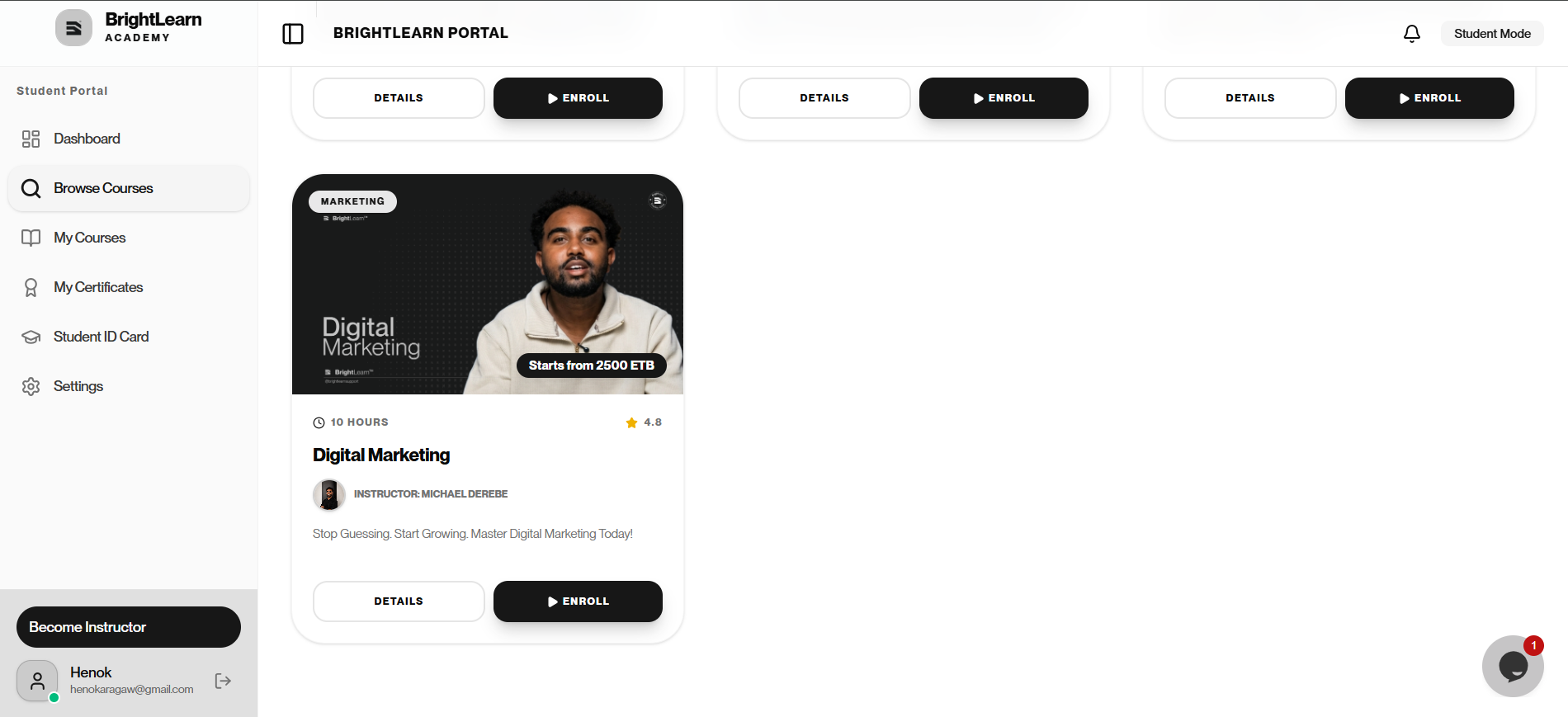
Step 1 — Open Browse Courses
- After logging in, click Browse Courses in the left sidebar.
- The Available Courses page opens with a search box at the top.
Step 2 — Use the search box
- Click the Search box (for example, “Search courses or instructors…”).
- Type a course name, subject, or keyword (for example, “Marketing” or “Cyber Security”).
- Press Enter or wait for results to update.
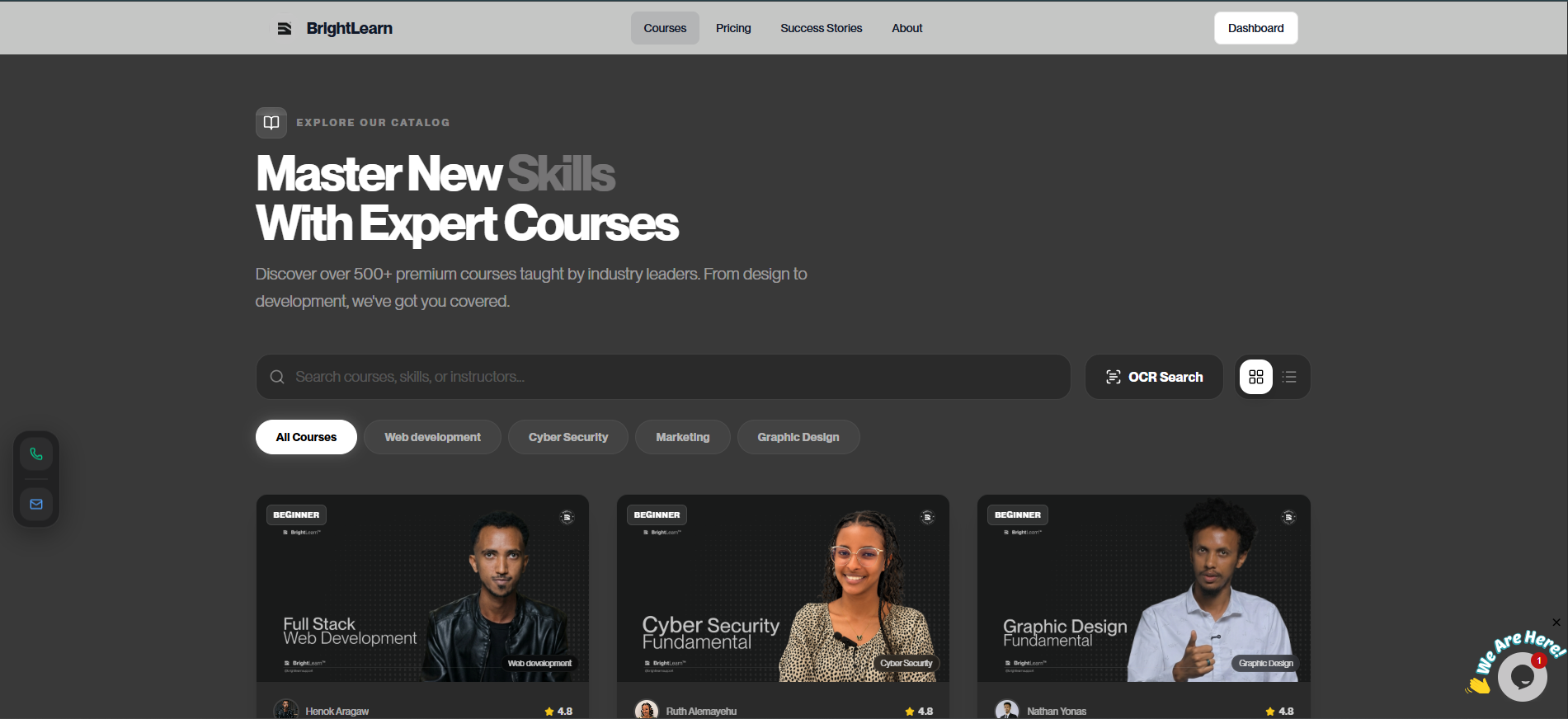
Step 3 — Search from the public courses page
You can also search before logging in:
- Go to the BrightLearn home page.
- Open the Courses section.
- Use the search bar at the top of the page.
Step 4 — Review search results
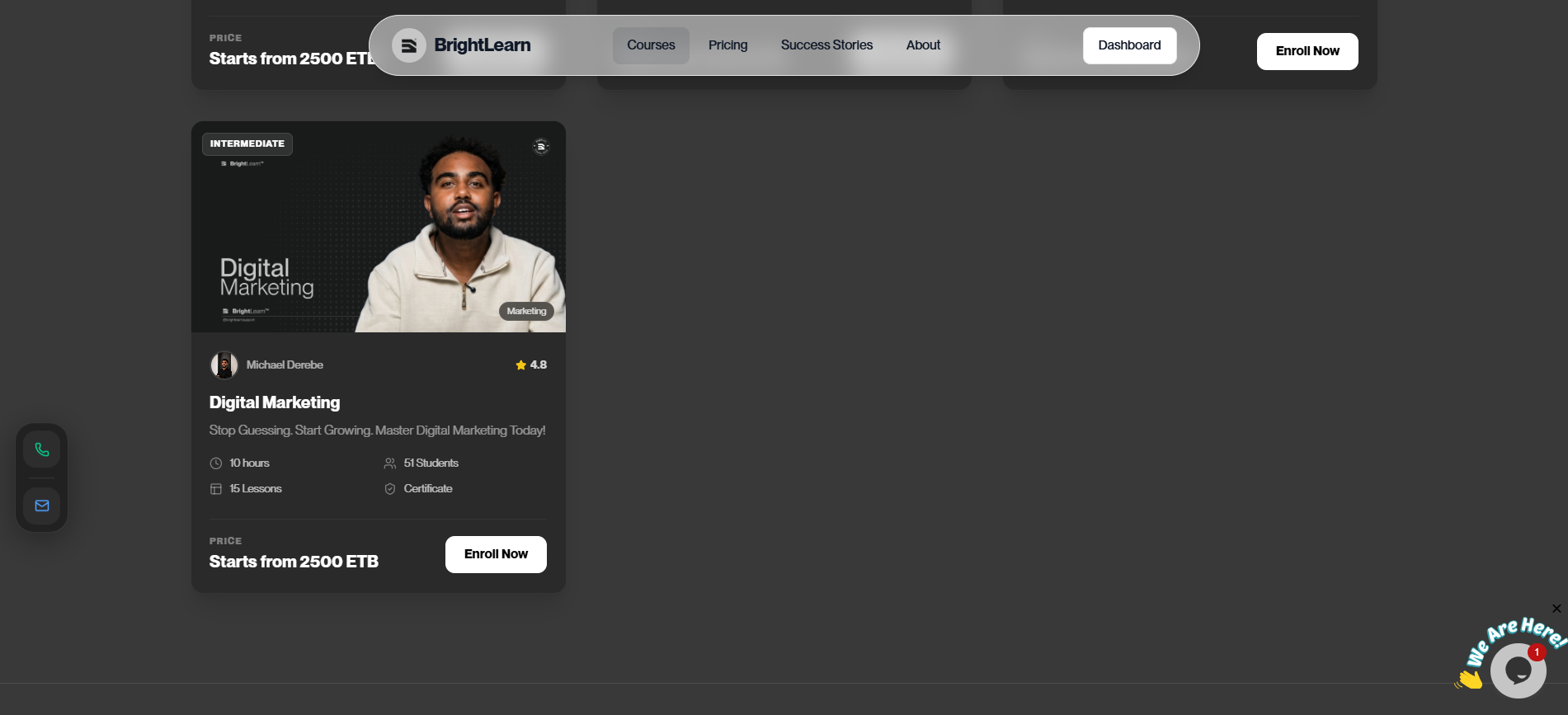
- Scroll through the matching course cards.
- Use category filters (for example Web development, Cyber Security, or Marketing) to narrow results.
- Click a course title to open course details.
Step 5 — Use filters (if available)
Some catalogs offer filters:
- Click a category button above the course list.
- Choose a subject, level, or price range.
- Results update to show matching courses only.
Try different keywords if your first search returns no results. For example, search “Security” instead of “Cyber Security.”
Troubleshooting
No results found.
- Check your spelling.
- Try a shorter or more general keyword.
- Browse all courses on Browse Courses.
Search is slow.
Wait a few seconds. If it still fails, refresh the page.
Frequently Asked Questions
Can I search by teacher name?
Type the instructor’s name in the search box. Matching courses appear in the results.
Next: Course details
Last updated on