Forgot Your Password
If you forgot your BrightLearn password, you can reset it using your email address. You do not need to contact support for a basic reset.
Before you begin
You need:
- Access to the email address on your BrightLearn account
- A few minutes to check your inbox
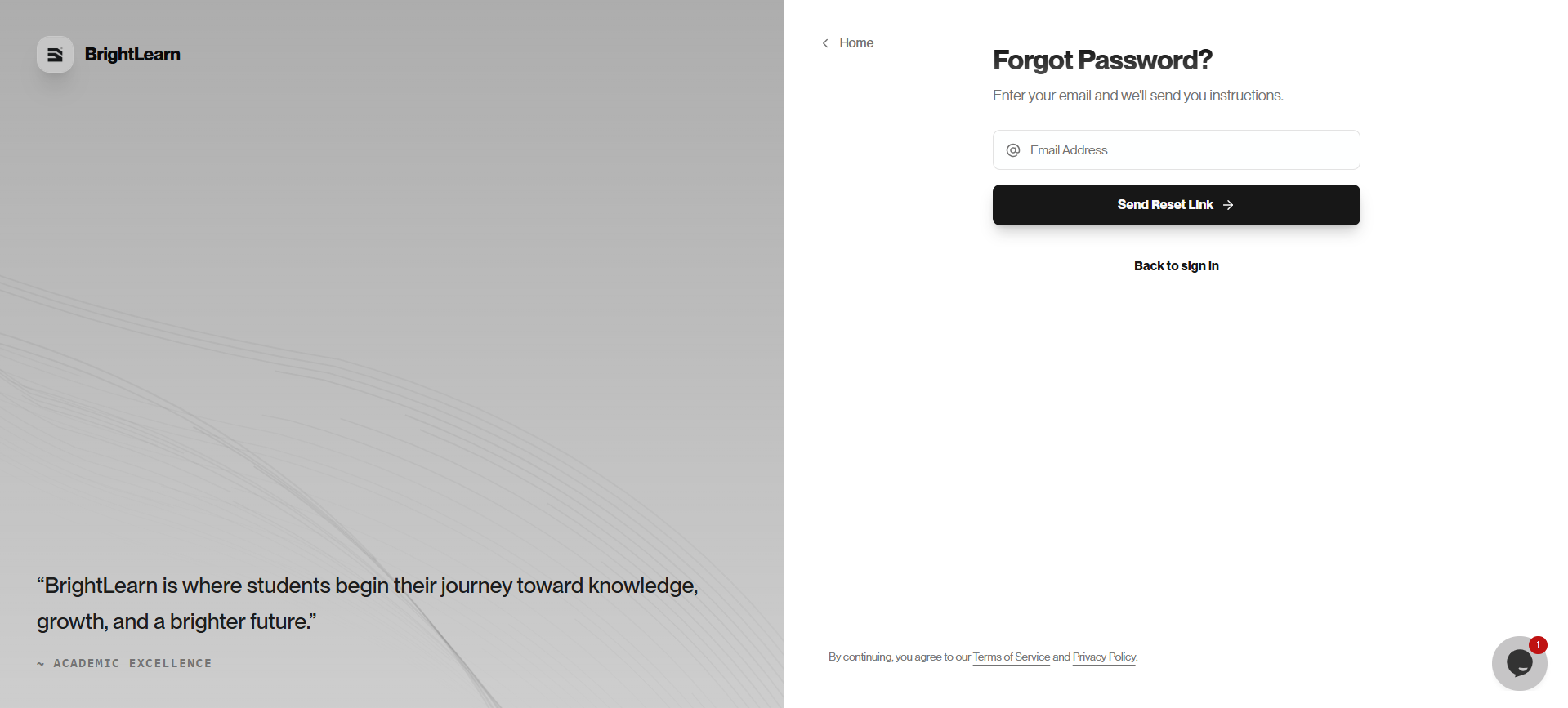
Step 1 — Open the forgot password page
- Open BrightLearn in your browser.
- Click Login.
- On the login page, click Forgot password? or Reset password.
Step 2 — Enter your email
- Type the email address you used when you registered.
- Click Send reset link or Continue.
BrightLearn sends a password reset email to that address.
Step 3 — Open the reset email
- Open your email inbox.
- Look for a message from BrightLearn about resetting your password.
- Click the Reset Password link in the email.
The reset link may expire after a short time. If the link does not work, request a new one from the forgot password page.
Step 4 — Create a new password
- On the reset page, type your new password.
- Type the same password again to confirm.
- Click Save or Reset Password.
Step 5 — Log in with your new password
- Return to the login page.
- Enter your email and new password.
- Click Login.
Troubleshooting
I did not receive the reset email.
- Wait a few minutes and check again.
- Look in your spam or junk folder.
- Make sure you typed the correct email address.
- Try sending the reset link again.
The reset link says it expired.
Request a new link from the forgot password page and use it promptly.
For more help, see Password reset help.
Frequently Asked Questions
Will my courses disappear after I reset my password?
No. Resetting your password does not affect your enrollments or progress.
Can someone else reset my password?
Only if they have access to your email inbox. Keep your email account secure.
Next: Your first login