Enroll in a Course
When you find a course you want, enrollment connects your account to that course so you can start learning after payment is confirmed (if required).
Before you begin
- Log in to BrightLearn.
- Open the course details page for the course you want.
Step 1 — Click Enroll
- On the course details page, click Enroll Now or Join Course.
- A Choose Your Plan window opens.
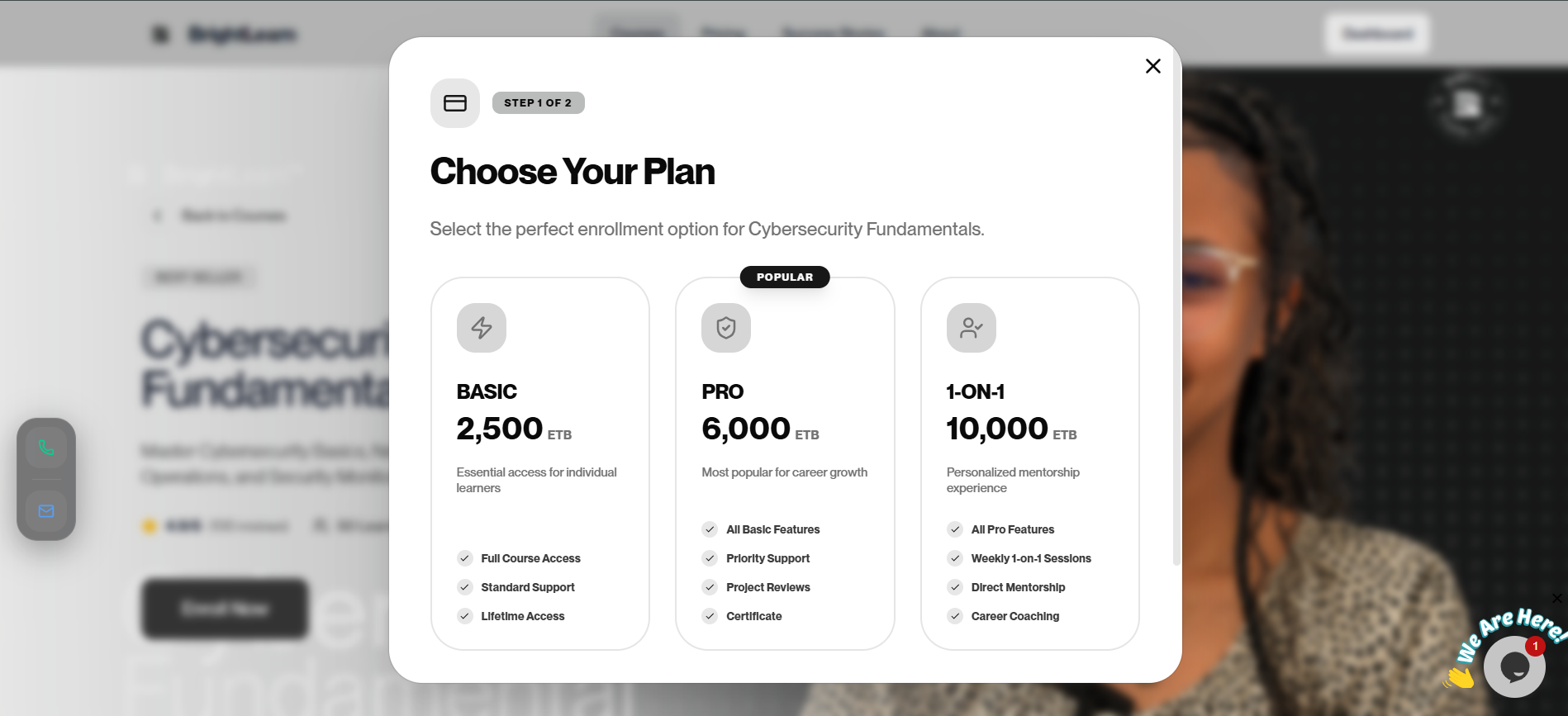
Step 2 — Choose your plan
- Review the available plans (for example Basic, Pro, or 1-on-1).
- Read the price and what each plan includes.
- Click the plan you want to select it.
Step 3 — Continue to payment
- Click Continue or the button to move to the next step.
- The Complete Payment screen opens.
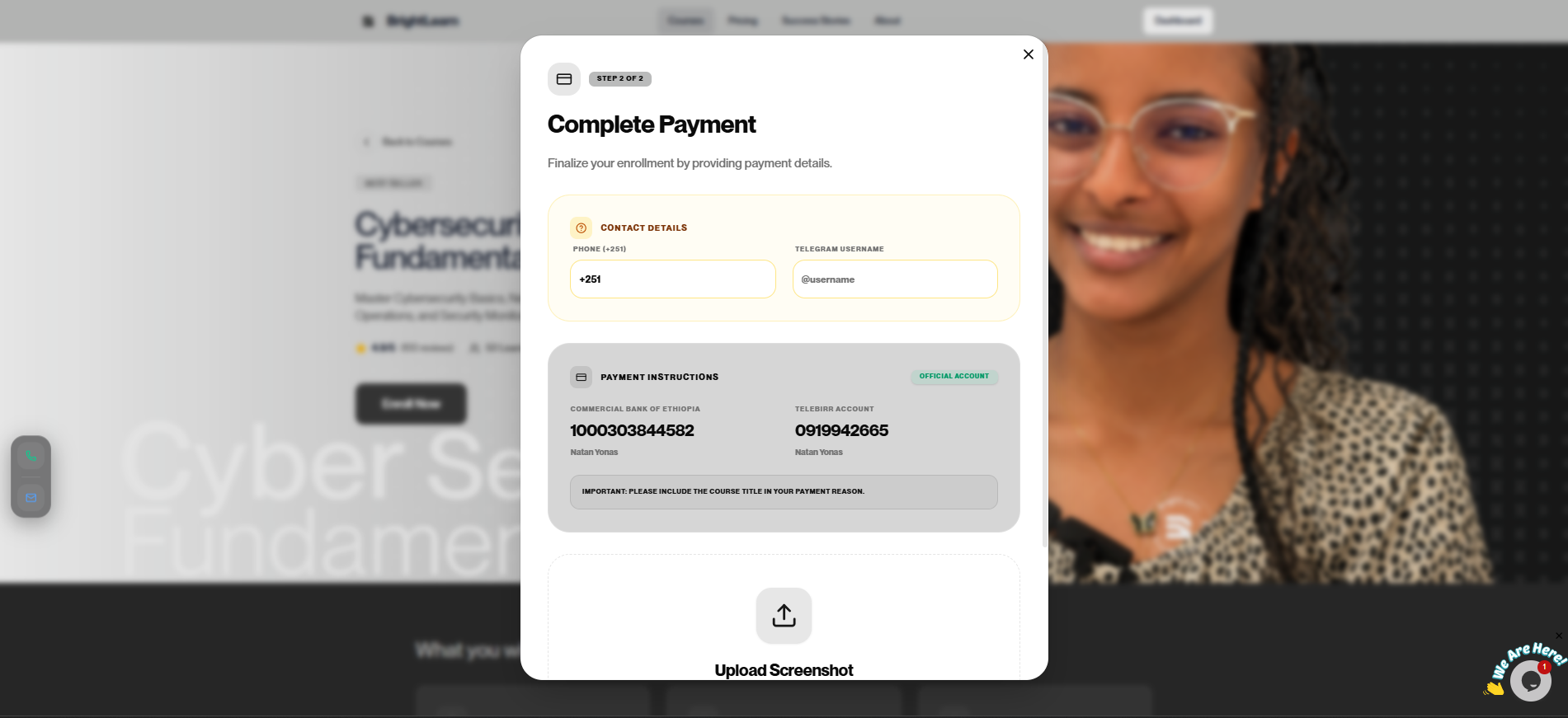
Step 4 — Enter contact and payment details
- Enter your phone number and Telegram username if asked.
- Read the payment instructions and note the bank or mobile wallet account details.
- Include the course title in your payment reason when you pay.
Step 5 — Upload payment proof (for paid courses)
For paid courses:
- Pay using the method shown on screen.
- Take a screenshot or photo of your payment receipt.
- Upload it on the payment screen or follow Upload payment proof.
Do not refresh the page while uploading payment proof.
Step 6 — Wait for approval
- Your enrollment status shows Pending until an administrator verifies payment.
- See Payment status to track progress.
Payment verification usually takes less than 24 hours.
Step 7 — Start learning
Once approved:
- Open My Courses.
- Click the course to start watching videos.
Troubleshooting
I already enrolled but status is Pending.
Wait for payment approval or contact your administrator. See Payment not approved.
Enroll button does nothing.
Refresh the page and try again. Make sure you are logged in.
Frequently Asked Questions
Are free courses instant?
Yes. Free courses usually give access immediately after you click Enroll.
Next: My courses
Last updated on