Your First Login
After you create your account and log in for the first time, BrightLearn opens your Dashboard. This guide explains what you see and what to do next.
Before you begin
You should already have:
- A BrightLearn account
- Successfully logged in at least once
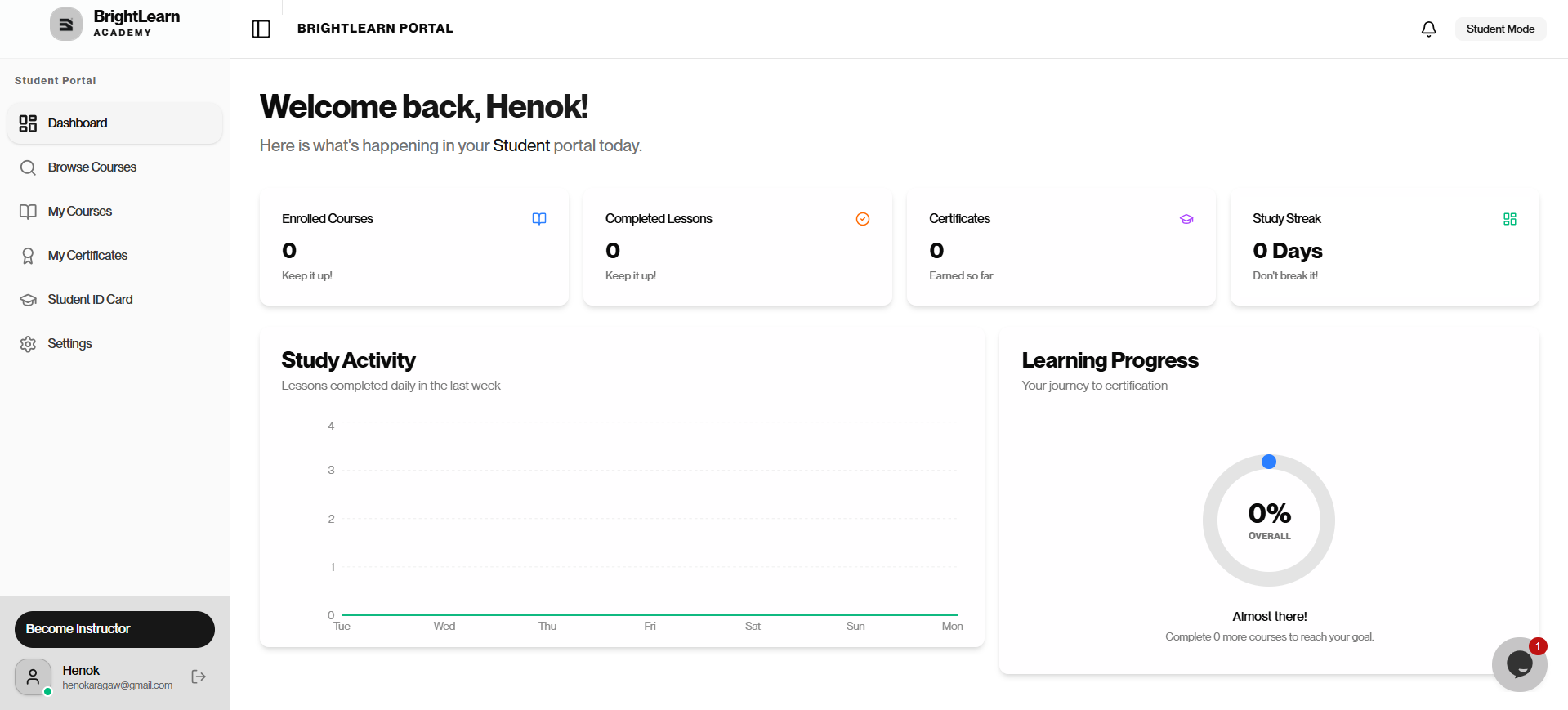
Step 1 — Look at your Dashboard
After logging in, your Dashboard opens automatically.
On the Dashboard you may see:
- A welcome message
- My Courses — courses you are enrolled in (may be empty at first)
- Browse Courses — a link to find new courses
- Your profile name or picture in the top-right corner
Step 2 — Complete your profile (recommended)
- Click Settings in the left sidebar.
- Review your account details.
- If anything is wrong, contact your administrator.
Step 3 — Browse available courses
- From the left menu or top navigation, click Browse Courses or Courses.
- Scroll through the list of available courses.
- Click a course title to read more about it.
See Browse courses for step-by-step help.
Step 4 — Enroll in your first course
When you find a course you want:
- Open the course details page.
- Click Enroll or Buy Now.
- Follow the steps to pay and upload payment proof if required.
See Enroll in a course and Upload payment proof.
After you successfully enroll in a course and an administrator approves your payment, the course will appear in My Courses.
Step 5 — Explore account settings
Take a moment to review:
- Change password — update your password if needed
- Your profile — view your account details
Troubleshooting
My Dashboard is empty.
That is normal for a new account. Browse courses and enroll in one to get started.
I cannot find Browse Courses.
Look in the left sidebar or the top menu. Wording may vary slightly, but the courses section is always available after login.
Frequently Asked Questions
Do I need to enroll immediately?
No. You can explore the platform first and enroll when you are ready.
Where do I get help?
Visit Help & Troubleshooting anytime.
Next: Your profile