My Courses
My Courses shows every course you are enrolled in — including pending, active, and completed courses.
Before you begin
- Log in to BrightLearn.
- Have at least one enrollment (or expect an empty list if you are new).
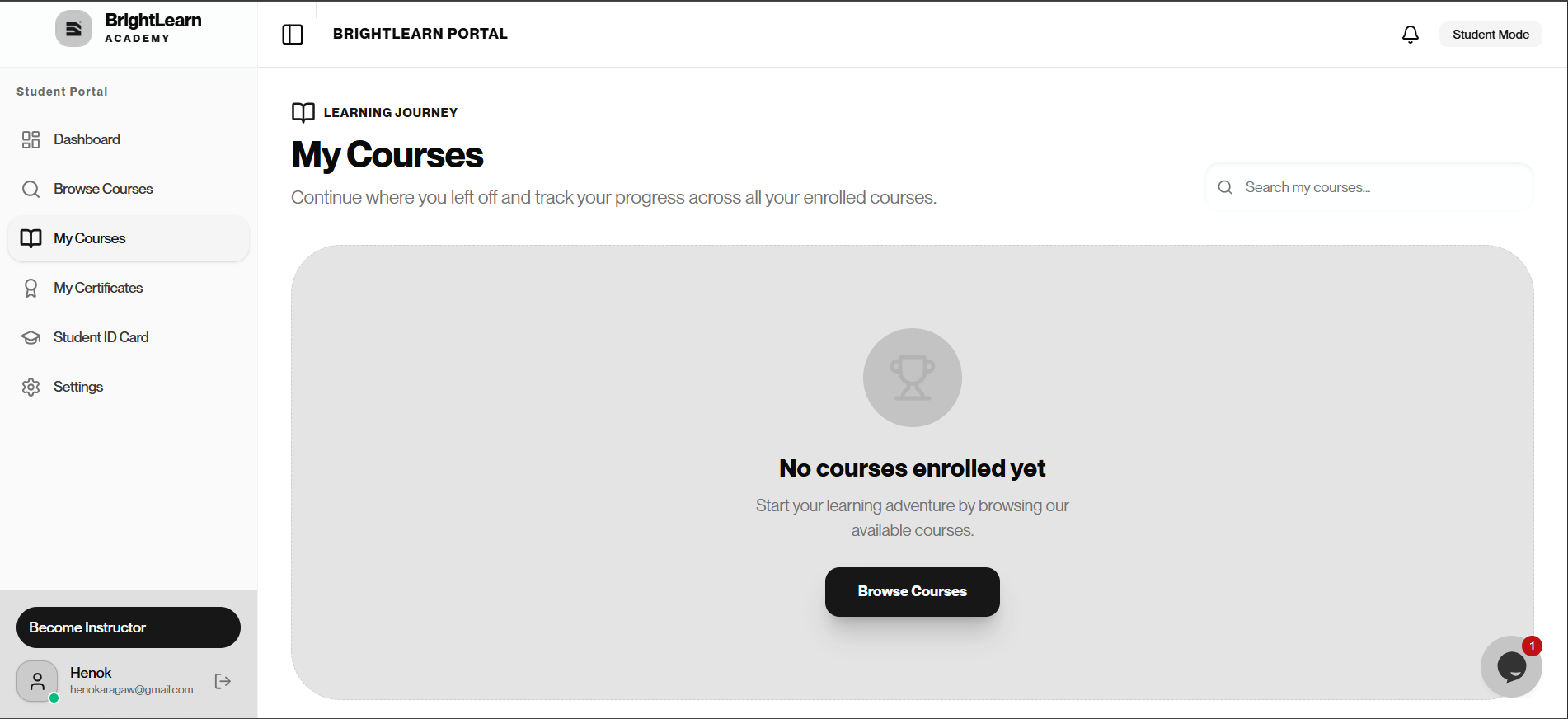
Step 1 — Open My Courses
- After logging in, click My Courses in the left navigation or top menu.
- Your enrolled courses appear as cards or a list.
Step 2 — Understand course status
Each course may show a status:
- Active — you can access lessons now
- Pending — waiting for payment approval
- Completed — you finished the course
Step 3 — Open a course
- Click the course title or Continue button.
- The course learning page opens with the lesson list.
- Click a lesson to watch videos or complete activities.
Step 4 — Track progress
- Look for a progress bar or percentage on the course card.
- See Track your progress for details.
Use Continue to jump back to the last lesson you were watching.
Troubleshooting
My course is missing.
- Check if enrollment is still Pending payment approval.
- See Course not visible.
- Contact your teacher if you were assigned to a class.
Continue opens the wrong lesson.
Open the course and manually select the lesson you want from the list.
Frequently Asked Questions
Can I remove a course from My Courses?
You typically cannot remove an enrollment yourself. Contact your administrator if you enrolled by mistake.
Next: Payment methods
Last updated on