Upload Payment Proof
After you pay for a course, upload a screenshot of your receipt so an administrator can verify and approve your enrollment.
Before you begin
You need:
- A completed payment (bank transfer, mobile payment, etc.)
- A clear screenshot or photo of the receipt
- Your phone number
- Your Telegram username
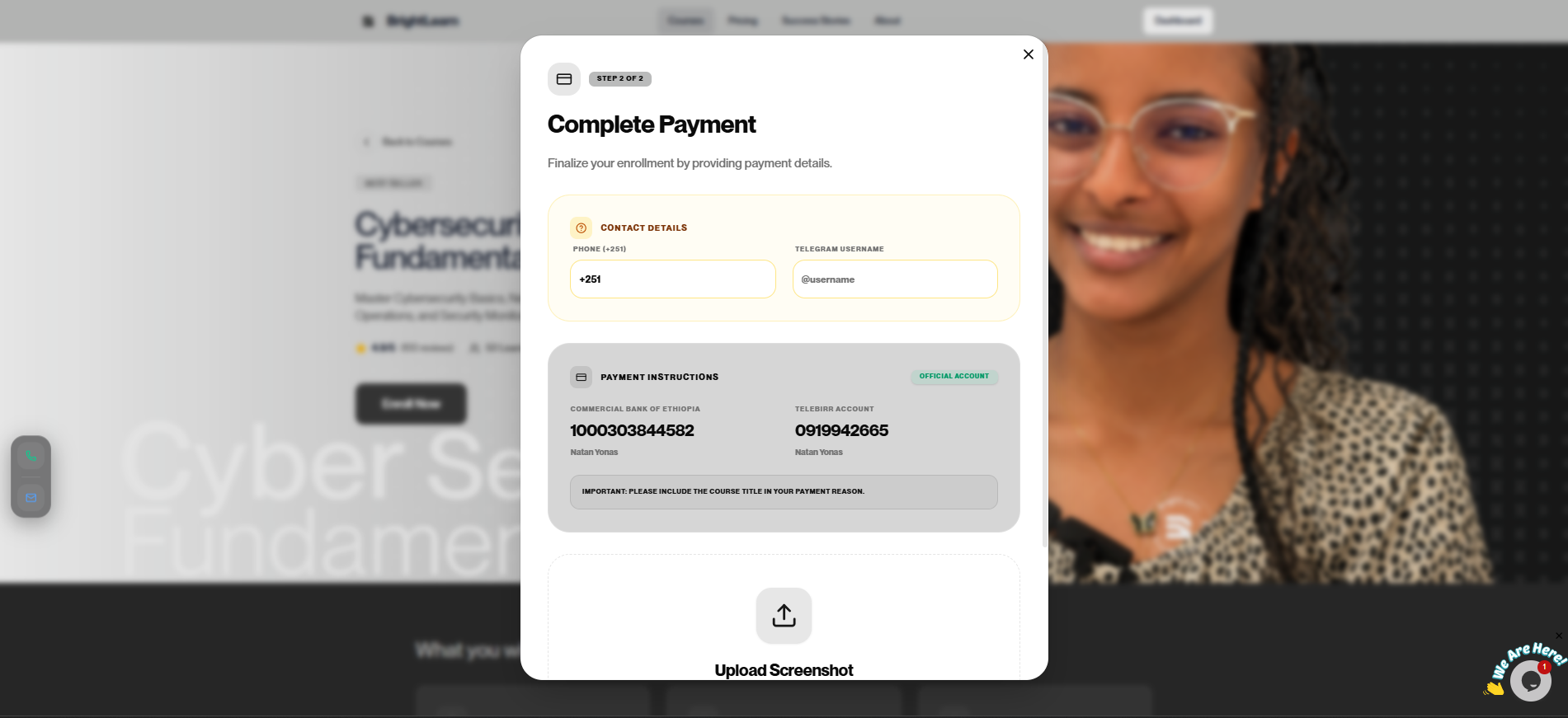
Step 1 — Open the payment upload page
- Log in to BrightLearn.
- Go to My Courses or the course you enrolled in.
- Click Upload Payment Proof, Submit Receipt, or open the enrollment confirmation page.
Alternatively, start from Enroll in a course if the upload step appears right after enrollment.
Step 2 — Prepare your screenshot
- Open your bank app or payment confirmation on your phone or computer.
- Make sure the screenshot shows:
- Amount paid
- Date and time
- Transaction reference or ID
- Recipient (if visible)
Crop the image so the payment details are easy to read.
Step 3 — Upload the file
- Click Choose file, Upload, or Browse.
- Select your screenshot (PNG or JPG).
- Wait for the upload progress bar to finish.
Do not refresh the page while uploading payment proof.
Only upload a real payment screenshot from your bank or mobile wallet. Fake, edited, or reused payment images are not allowed. If you submit a fake payment proof, your account may be banned from using BrightLearn.
Step 4 — Add details (if asked)
- Enter your transaction ID or reference number if there is a field for it.
- Enter your phone number.
- Enter your Telegram username.
Step 5 — Submit
- Click Submit or Send for verification.
- Wait for a confirmation message.
- Your status changes to Pending verification.
Payment verification usually takes less than 24 hours.
Step 6 — Check status later
See Payment status to track approval.
Troubleshooting
Upload failed.
- Use a smaller file (under 5 MB if possible).
- Try PNG or JPG format.
- Check your internet connection and try again.
I uploaded the wrong image.
Contact your administrator or upload again if the page allows it.
What happens if I upload a fake screenshot?
Fake or edited payment proof is not allowed. Your enrollment will be rejected and your account may be banned from BrightLearn. Only upload a real receipt from your actual payment.
See Payment not approved if verification takes too long.
Frequently Asked Questions
Can I upload from my phone?
Yes. Take a photo of your receipt and upload it from your phone’s gallery.
Next: Payment status