Log Out
Log out when you finish using BrightLearn, especially on shared or public computers.
Before you begin
You should be logged in to BrightLearn.
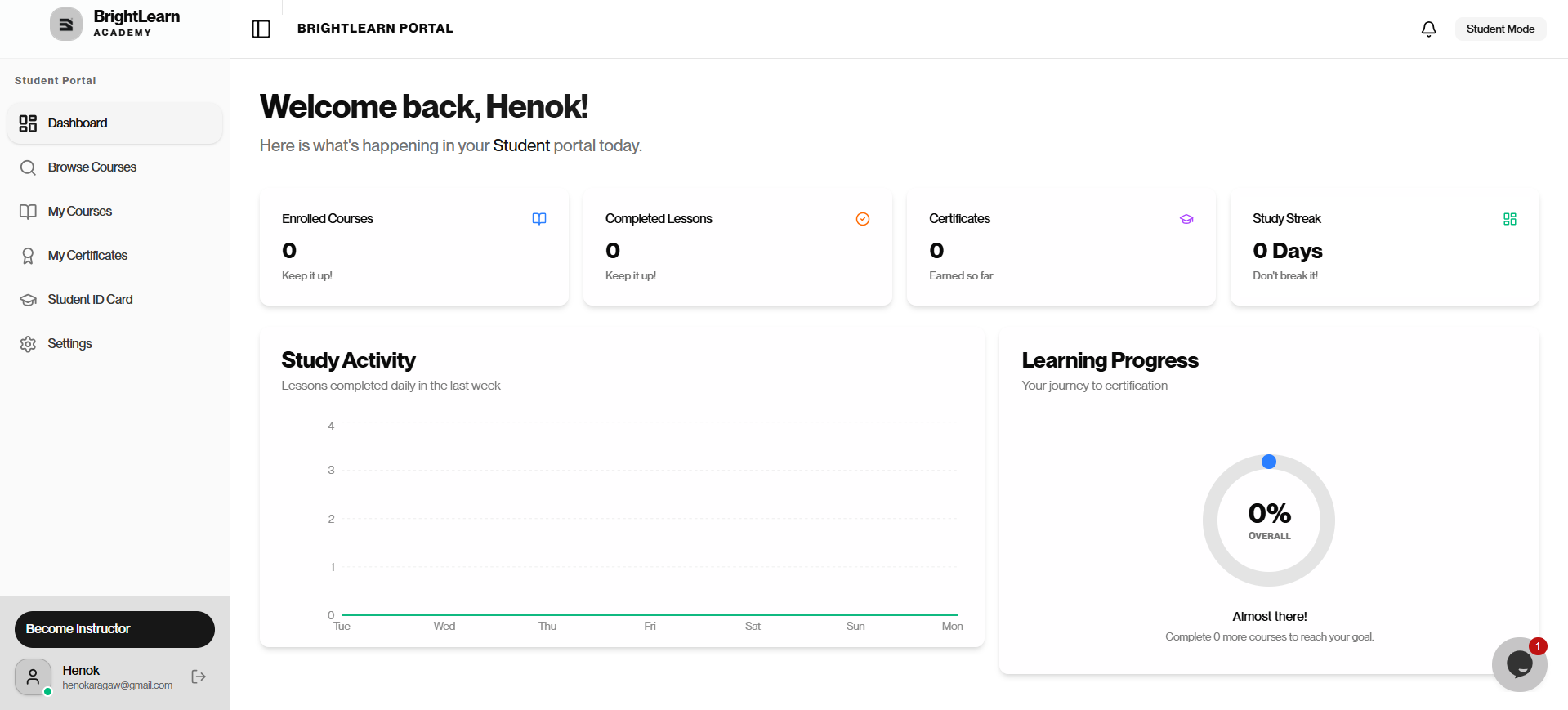
Step 1 — Find the logout icon
- Look at the bottom left of the left sidebar.
- Find your name and email below the navigation menu.
- To the right of your email, you will see the logout icon (a square with an arrow pointing out).
Step 2 — Click Log Out
- Click the logout icon next to your profile at the bottom of the sidebar.
- Wait for the page to refresh.
You return to the BrightLearn home page or login page. You are no longer signed in.
Step 3 — Confirm you are logged out
- Try clicking My Courses or Dashboard.
- BrightLearn should ask you to log in again.
Always log out on school computers, library computers, and any device others may use.
Troubleshooting
I closed the browser without logging out.
On a shared computer, open the browser again, go to BrightLearn, and log out if you are still signed in.
I cannot find the logout icon.
Scroll to the bottom of the left sidebar. The logout icon is next to your name and email.
Frequently Asked Questions
Will logging out delete my progress?
No. Your course progress is saved on your account. Log in again to continue.
Can I stay logged in on my personal phone?
Yes, on your own device. Use Remember me on login if available.
Next: Browse courses