Create a BrightLearn Account
You need a BrightLearn account before you can enroll in courses. This guide shows you how to register in a few minutes.
Before you begin
Make sure you have:
- A working email address you can access
- A password you will remember (at least 8 characters)
- A few minutes to complete the form
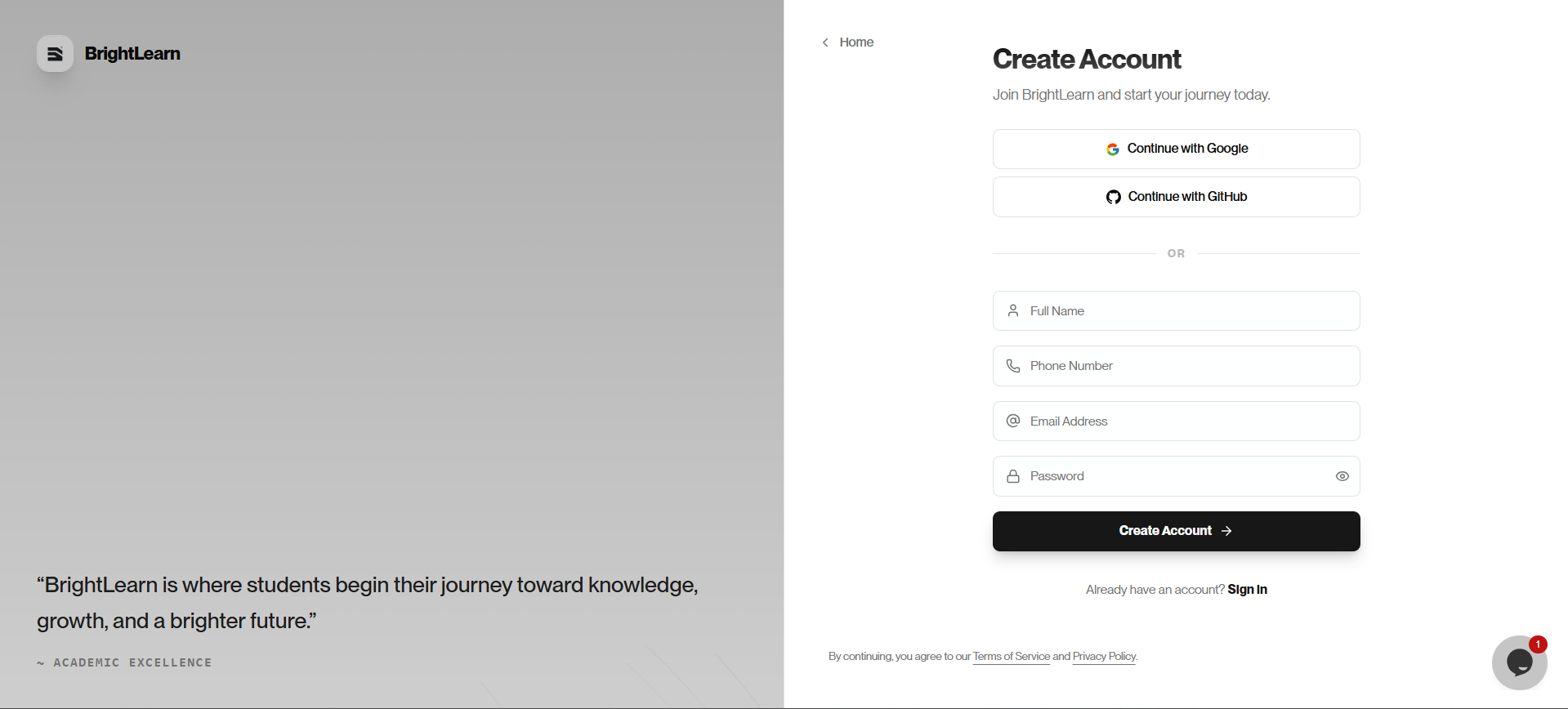
Step 1 — Open BrightLearn
- Open your web browser.
- Go to the BrightLearn website.
- On the home page, click Register or Sign Up in the top-right corner.
The registration page opens.
Step 2 — Enter your details
- Type your full name in the name field.
- Type your email address in the email field.
- Create a password and type it in the password field.
use ur work email and they can use there student email as well
Step 3 — Accept the terms
- Read the terms and privacy policy if you wish.
- Check the box to agree to the terms.
- Click Create Account or Register.
Alternative — Create an account using GitHub or Google
You can also create a BrightLearn account quickly using your existing GitHub or Google account.
- On the registration page, click Continue with Google or Continue with GitHub.
- A secure popup will open, asking you to sign in to that service.
- Review and accept the permissions requested by BrightLearn.
- Your account will be created instantly and you will be logged in.
Using GitHub or Google is faster because you do not need to create and remember a new password for BrightLearn.
Step 4 — Verify your email (if asked)
Some accounts require email verification:
- Open your email inbox.
- Look for a message from BrightLearn.
- Click the Verify Email link in the message.
- Return to BrightLearn and log in.
If you do not see the email within a few minutes, check your spam or junk folder.
What happens next?
After your account is created, you can log in and start browsing courses.
Troubleshooting
I see “Email already in use.”
You may already have an account. Try logging in instead, or use Forgot Password if you forgot your password.
The registration button does not work.
Make sure all required fields are filled in and your passwords match.
Frequently Asked Questions
Can I change my email later?
Yes. After logging in, go to Edit your profile to update your email.
Do I need a phone number?
Only if the registration form asks for one. Follow the on-screen fields.
Next: Log in to BrightLearn